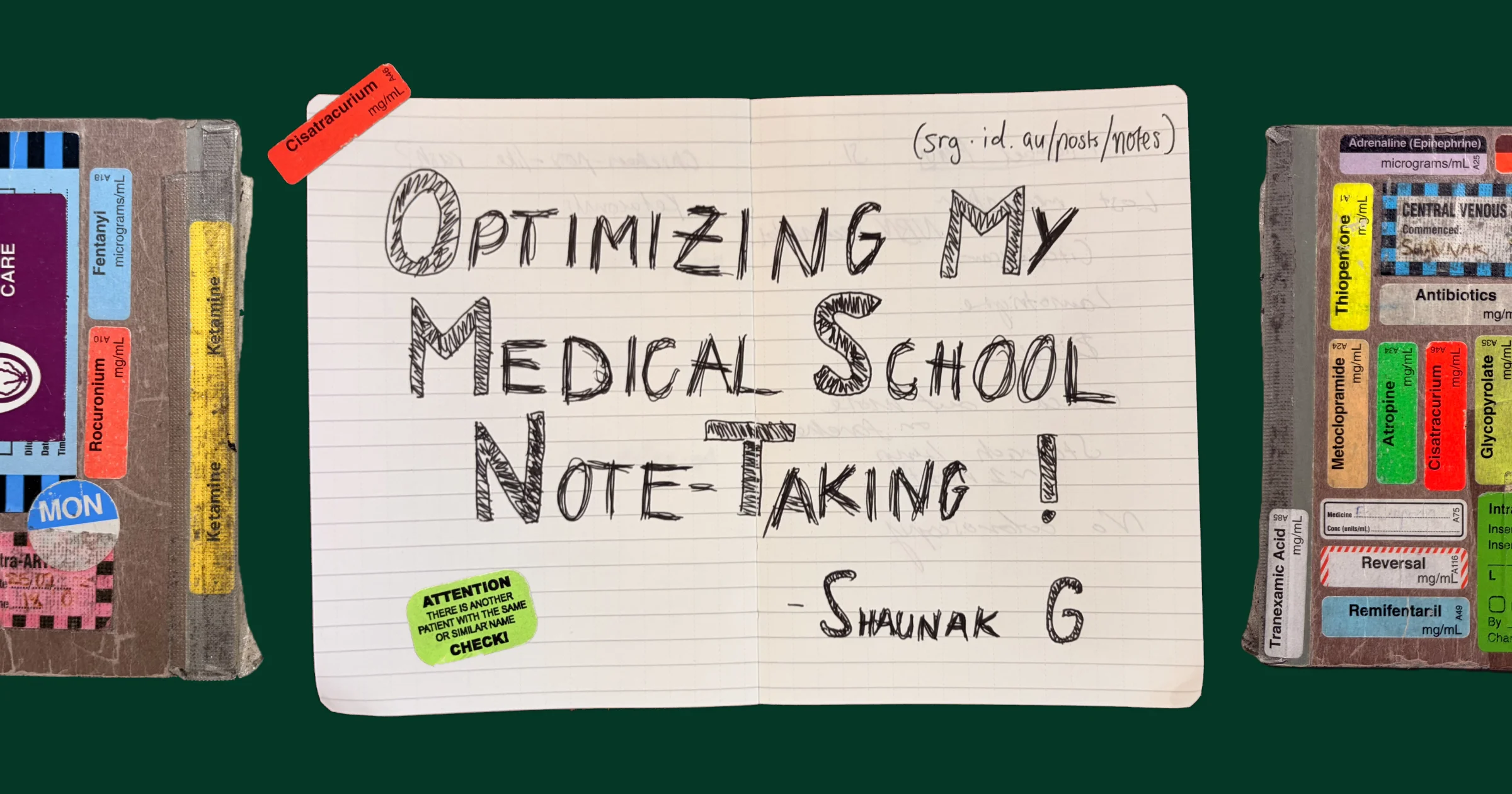
My second clinical year of med school starts tomorrow - 180 days of intensive placement across general practice, obstetrics & gynaecology, paediatrics and psychiatry. This year, we have 585 conditions to learn, 230 of which are "rank 1s" - the most important conditions that will likely appear on our exams.
Year 4 is generally considered the hardest year at my medical school, so in order to not fail, I've spent the last few weeks optimizing my notes as much as possible to make it easier for me to study. In this post, I'll cover that setup – the note-taking app I use, how I organise my notes and how I use flashcards to increase recall.
Introducing The Matrix
The Matrix 1 is how we are provided the conditions to learn for the year. It is a massive spreadsheet of medical conditions, categorised into body systems and ranked by their importance for the year. Rank 1 conditions are almost certain to be on the exam and rank 3s are the least likely.
Emphasis is always required when we're talking about The Matrix. It's that important.

A section of The Matrix for Year 3.
This is sent to us as a PDF document at the start of the year, with (as you can see) lots of columns. Students are expected to self-study these conditions, with the only assessment of your knowledge being the end-of-year exams 2.
Technically, we have clinical assessments throughout the year, but they don't cover our knowledge to the same depth.
Therefore, it's critical to get organisation and study technique down pat at the start of the year, since if you're studying wrong, it's hard to know and therefore to course-correct.
Why Obsidian?
I've chosen to do the bulk of my note-taking in Obsidian, a free, fast, and local-first note-taking app with lots of customisability. Some people use it to create a personal knowledge base or "second brain", which basically means dumping everything you want to know into one place. Obsidian has really great in-built tools to organise and cross-reference this information which makes it great for this purpose.
Alternatives
Some of my classmates use alternative note-taking systems with their own pros and cons, so I'll list them here:
- Notion: Great UI, syncing out-of-the-box, but it was too limited for me in terms of extensibility. Plus, it's not local-first.
- OneNote: Usually used by people with an iPad since it supports annotating your notes with an Apple Pencil. For me, it was too slow on desktop, and lacked a lot of useful features such as databases.
- Anki: My best friend solely uses Anki to study and store his knowledge, mostly unsuspending flashcards from the Anking deck as he learns more content. For me, this seemed a bit risky as there was no way to be sure that the US-based deck covered the same conditions to the same level of depth as our curriculum 3.
To be fair, my friend usually does better than me on exams, so perhaps you should read his blog instead.
Why I use local-first notes
Local-first means that everything you create is stored locally on your computer, which means that you own your data and you can be assured that it's safe, even if Obsidian shuts down or changes ownership. Also, your notes are in a format called Markdown which you can edit using any text editor (so you don't necessarily need Obsidian to manage your notes).
When I ask my friends about why they chose their particular notetaking software, or why they haven't switched to Obsidian, one of the most common reasons I hear is "it doesn't back up" or "I can't access the notes on my phone". I completely get it - syncing is super important to me as well and the fact that this feature costs money in Obsidian is a turn-off.
However, the main benefit to me is that I own my notes. I plan on keeping this Obsidian vault for the foreseeable future - using it not just for the rest of medical school but also to study for specialist training exams, research projects, etc. I never want to risk having my notes unavailable because of a problem with an external provider.
When you use Notion, OneNote, or any online-first note-taking service, your notes are at the mercy of their system. Anything from a technical issue on their end to them kicking you off the platform can result in a temporary-to-permanent disruption to your productivity 4. I don't want this to impact me after spending 10 years curating my notes, so I've made the decision to go local-first from the start to be proactive. However, I still pay for Obsidian Sync to be able to access my notes on my phone and iPad (it's about $6 a month).
For example, Springpad was a note-taking app that shut down in 2014 with a small window for their users to export data. Users who neglected doing so lost their notes. Also, here's a time when Google Docs locked a writer out of their account.
Wrangling The Matrix
With 585 conditions, organization is critical. I wanted a system that:
- Respects each condition's rank, i.e., it should be easy to understand which conditions have a higher rank so I can study accordingly.
- Clearly delineates the body system, medical specialty or category that each condition is in.
- Allows me to track the status of each condition - what's been started, completed and what I have yet to do.
I decided to go with Obsidian Bases, which is Obsidian's answer to Notion Databases. A Base is just a special file in your vault that shows all of the files adjacent and deeper to it. For example, all of the conditions relating to psychiatry can be viewed at Year 4/Psychiatry/Psychiatry Matrix.base.

Psychiatry conditions for Year 4. Note the rank number and status checkboxes on the left of each entry.
Each condition is just a file in the file structure, for example, my notes for Generalised Anxiety Disorder are stored in Year 4C/Psychiatry/Adult Psychiatry/Anxiety Disorders/Generalised Anxiety Disorder.md. But how do I track the completion status and rank of each condition? That's where the content of each file comes in.
Frontmatter matters
Markdown files have a mechanism called frontmatter, which is basically metadata at the start of the file. The frontmatter in my Generalised Anxiety Disorder file looks like this:
---
title: Generalised Anxiety Disorder
rank: 1
status: not-started
topic: Adult Psychiatry
subtopic: Anxiety Disorders
---
Frontmatter allows me to store arbitrary data for each condition. Obsidian also has native support for this system. You can set Bases columns to pull from the frontmatter directly, as well as manipulate the values to look better in a table format (that's how my condition status becomes checkboxes).
Creating files for each condition
To turn a massive PDF into a bunch of lightweight Markdown files, I used a combination of LLMs and traditional scripting. I first converted the PDF into images for each page, then used Google's gemini-3-flash AI model to translate this into a tabular format (LLMs are still not perfect with PDF files, which is why the image conversion was needed). This produced a clean output:
| Condition | Rank | Subtopic | Topic |
|---|---|---|---|
| Schizophrenia | 1 | Psychotic Disorders | Adult Psychiatry |
| Schizoaffective Disorder | 2 | Psychotic Disorders | Adult Psychiatry |
| Schizophreniform Disorder | 2 | Psychotic Disorders | Adult Psychiatry |
| Brief Psychotic Disorder | 3 | Psychotic Disorders | Adult Psychiatry |
| Delusional Disorder | 3 | Psychotic Disorders | Adult Psychiatry |
I then used a script to generate files according to this table:
Year 4C
├── GP
│   ├── Aged Care
│   │   ├── Advanced Care Planning.md
│   │   ├── Alzheimers & Dementia.md
│   │   ├── Delirium.md
│   │   ├── Fall Prevention.md
│   │   └── Residential Care.md
│   ├── Child, Adolescent and Mental Health
│   │   ├── Anxiety Disorders.md
This created a Base-ready directory structure.
Defeating writer's block
Imagine opening a condition and being greeted with an entirely blank page. I knew that for me, this would trigger some level of writer's block, where I tried to remember what I needed to study for this condition specifically. To mitigate this, I've pre-filled each file with a template corresponding with its rank.

Rank 1 conditions have the most pre-filled headings, while rank 3s have the least.
Taking notes on placement
While I'm in the hospital or a clinic, my note-taking method needs to be different. Not only is typing on my laptop or phone while chatting with a patient seen as somewhat disrespectful, it's far less efficient than pen-and-paper.
Therefore, in my clinical years, I've taken to using Muji lie-flat notebooks. They are relatively cheap and extremely convenient. Plus, you can decorate them! 5
Pro tip: the anaesthetics team and ED usually have the best stickers.

My notebook from Year 3.
This notebook will generally contain all of the thoughts, ideas and follow-up questions I've had during the day. When I come home, I go through it and address all of the follow-ups. For example, if a patient presented with an unfamiliar condition, I'd note it down, then look it up in AMBOSS that evening and add it to my Anki queue.
I also use the Obsidian mobile app to scan the notebook and add it to my journal - in combination with the Omnisearch extension, this lets me search across my written notebook pages (it scans my handwriting).
Study workflow
After I've addressed anything in the written notebook, the real study starts. I need to complete at least 230 rank one conditions by November, which is around one a day. The issue is that completing each condition in some sort of order (such as "one system at a time") often leads to boredom, as variety is lost. Instead, I've decided to make my study workflow semi-random, and augment each study session with flashcards.
The Random Matrix extension
I've implemented a combination of extensions to help me have a consistent study workflow this year. Chief among these is my Random Matrix extension, which gives me a button in Obsidian to open a random Matrix condition each day. This uses a weighted random pick algorithm.

The control panel for the Random Matrix system.
First, the plugin filters down to notes that are eligible (not completed, not snoozed, not recently picked, and inside the target folder). Then, before randomly picking, each remaining note gets a "weight," which is basically a chance multiplier. Notes with higher weight are more likely to be chosen.
The weight starts at 1 and then gets nudged up or down based on a few rules:
- Status bias. Notes that are "not started" are favored a bit more than "in progress," and unknown status lands in between. This helps keep new items moving without ignoring what I’ve already started.
- Recency penalty. If a note was picked recently, its weight drops heavily, so I don’t see the same item again right away.
- Staleness boost. Notes that haven’t been seen for a long time get a boost, so neglected topics can be addressed.
- Diversity pressure. If I’ve just seen a certain topic or subtopic, similar notes get a temporary penalty. This avoids short-term repetition.
- Rank bias. Rank 1 notes are much more likely to be picked, with rank 2s and 3s having a lower weight.
Once every eligible note has a weight, the picker selects by adding up all the weights, rolling a random number in that range, and walking through the list until the cumulative total crosses the roll. Therefore, heavier notes are more likely to win, but any eligible note can still show up.
I created this extension myself, so it's not in the Obsidian community plugin system. If you want to use it, the source code is here (use this with BRAT).
Accessing resources with Note Toolbar
Once the Random Matrix picks a condition, I open it and start studying. The first thing I usually do is look up the condition in a few external resources - AMBOSS for a quick overview, Therapeutic Guidelines for Australian treatment protocols, and sometimes UpToDate for more depth.
To make this easier, I use the Note Toolbar extension, which places a row of buttons at the top of each note. Each button opens a search for the condition's name on a specific website.

My toolbar for Year 4 conditions. Each button opens a search for the condition name on that resource.
For example, if I'm studying chronic renal failure and click the "AMBOSS" button, it'll take me to the AMBOSS search page for "chronic renal failure". Similarly, if I click on "Therapeutic Guidelines", it'll show me Australian treatment guidelines for renal failure.
This is accomplished by using dynamic URLs. For example:
- For AMBOSS:
{{js: return ("https://next.amboss.com/us/search?q="+ encodeURIComponent(ntb.getProperty("title")))}} - For UpToDate:
{{js: return ("https://www.uptodate.com/contents/search?search=" + encodeURIComponent(ntb.getProperty("title")))}}
If you'd like to use this system, all you need to do is:
- Find a website you reference constantly to study.
- Make a search on that website, doesn't matter what for.
- Look at the URL on the search page. Find what part of the URL has your search query in it. For example, if I search
teston Google, the URL ishttps://www.google.com/search?q=test- where the last part is my search query. Copy the part before the search term, in this case, it'shttps://www.google.com/search?q=. - Construct the Note Toolbar URL using the below code:
{{js: return ("<EVERYTHING BEFORE THE SEARCH TERM>"+ encodeURIComponent(ntb.getProperty("title")))}}
You should then be able to paste this as a URI for a Note Toolbar item. Make sure you include the curly braces.

This is how your item should look in the Note Toolbar configuration menu.
Integrating Anki
After reading through the external resources, I write up my notes for the condition and create flashcards as I go. I use the Obsidian-to-Anki extension to sync flashcards from my notes to Anki. In any of my notes, I can surround a word or phrase with braces to create a cloze-deletion flashcard 6. For example, if I have the sentence This is a {test}, it shows up in Anki as the following flashcard:

Clicking on the link takes you directly to the note that created the flashcard.
This extension is quite customizable, so you can specify which deck the flashcards are assigned to based on the topic they originated from, or tag them with different information, etc. It's served me quite well in the last few years and I haven't really changed this process for Year 4.
I find that cloze-deletion flashcards are generally more effective than basic front+back flashcards, as they encourage bi-directional connections between concepts. Take the following flashcard: {Minimal change disease (lipoid nephrosis)} is the most common cause of {nephrotic} syndrome in {children}. This causes your brain to create a tri-directional link between the disease, syndrome and demographic, which means that your resulting knowledge will be more versatile.
Public flashcard decks
I generally prefer creating my own flashcards, but when I need to cram a lot of content in a short amount of time, I find that Ankihub has quite a few useful decks. Last year, I used:
- The USMLE Step 1 deck has a tonne of content to a high level of detail. I used this quite a lot, but found that it often was a bit too detailed for my curriculum, and obviously, didn't have Australian guidelines.
- The Malleus deck is an attempt to create a Step 1-like deck for Australian students and junior doctors. I discovered this late in the year, but really appreciated how it referenced Australian guidelines and resources for almost every card.
Conclusion and reflections from Year 3
I really enjoyed the hands-on and self-directed nature of learning in Year 3, and I'm excited to see if my optimized study techniques will work in Year 4. Some key things I changed from last year were:
- I'm not using Obsidian tables in my notes. Last year, I formatted each note with tables instead of headings, with the thinking that it would be more semantic formatting compared to Markdown headings. However, a lot of Obsidian features don't work in tables, such as headings (can't link to specific parts of the table), lists, images, and of course, tables (can't really create sub-tables). Also, many keyboard shortcuts don't quite work right inside a table cell. It's a bit nitpicky, but this year I made sure to use headings instead so I wouldn't experience the same frustration.
- I'm using the random matrix extension. A big part of why I didn't complete the matrix last year was basically either decision anxiety over picking a condition to do, or boredom from completing the 5th condition from the same subsystem of the body. This year, hopefully the random matrix extension will help with that.
Not all of these techniques will work for everyone, but my hope in writing this post is to publish the findings from a year of self-directed study. I'll review this document in November and annotate it with what worked and what didn't.
Thanks for reading! If you have any questions, just email me.